The Team Calendar
The Calendar is available to all employees in Simple Leave. It is designed to:
- Enable team members to see who is off to facilitate planning and coordination
- Provide protection for sensitive types of leave (e.g. sickness) by restricting who can see what
- Break down the view of leave by different Teams
What Leave Policies are shown?
Any leave policy that is set to Public will be shown on the calendar and will be visible to other employees.
Any leave policy that is set to Private will not be visible to other employees & team members.
Private Policies are only displayed on the calendar to the employee, their manager or administrators when they explicitly click the Private Policies filter on the page. Review the Leave Policies page for more information.
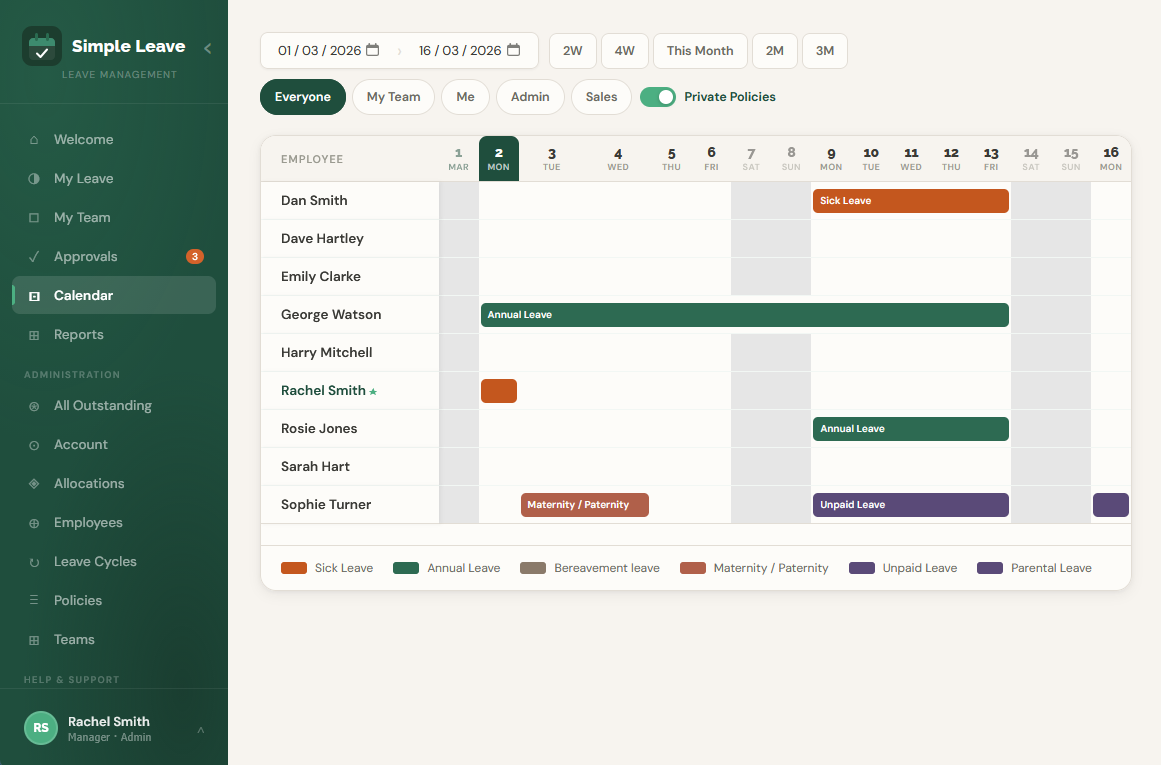 The above screenshot demonstrates the calendar view.
Team Types
By default, Simple Leave is configured to allow all employees to see the public policies of everyone.
It is possible to remove the everyone option and only let people see the leave of those assigned to their direct team. To do this, the Team-Only Visibility setting needs to be enabled by an administrator in the Teams section. Review the Teams page for more information.
Notes:
- Administrators can see every team on the calendar.
- Managers will have an option called "My Team" which will let them see the details of people they manage.
Working Days and Non-Working Days
The calendar will identify non-working days. These are typically coloured in Grey and when hovered over, will explain why they are greyed out.
By default, it will use the information supplied in the Leave Cycles to understand which days are standard working days for the company, and which national holiday or other significant dates are being observed for company-wide days off.
It is possible for different individuals to follow different work patterns and have that reflected on the calendar. Example use cases might be:
- Employees that work part time, e.g. have every Monday and Friday off work.
- Employees that work in another country, and observe different national holiday dates.
To cater for these scenarios an Administrator needs to configure the Working Patterns under the User Allocations page.
Review the Managing Allocations page for more information
Changing the bar colours
Administrators can change the colours of the bars on the Calendar. These settings will apply to all employees viewing the calendar. To make the changes:
- Click on any of the colours in the Legend, an "Edit colour" form will appear.
- Choose from a preset colour or pick your own.
- Click Save to apply.