Weekly Team Leave Email
Simple Leave can automatically send managers a weekly email summarising their team's upcoming leave. This helps you stay on top of who is off without having to log in to check.
What does the email contain?
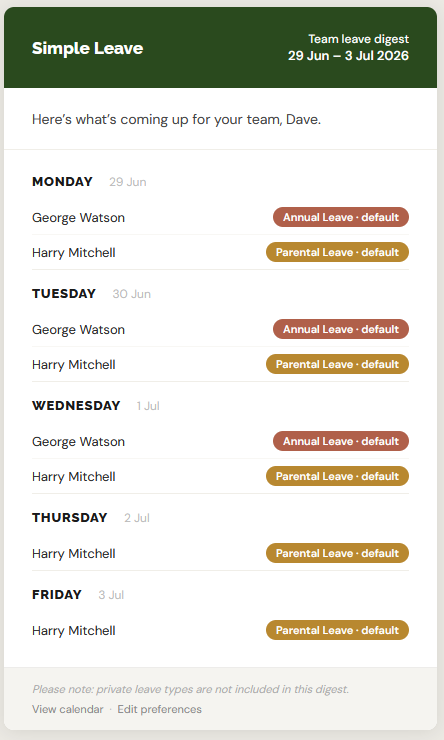
The email shows a day-by-day breakdown of approved leave for everyone you manage, covering the number of days you configure, up to 14 days. Each entry shows the employee's name and the type of leave they have booked.
Only public leave types are included. Private leave types (such as sickness, if configured as private by your administrator) are intentionally excluded to protect employee privacy.
The email reflects the state of approved leave only. Pending requests are not shown.
When is it sent?
Emails are sent at 8 am UK time on the day of the week you have chosen in your preferences. During British Summer Time (BST), this is 8 am BST. Outside of BST it is 8 am GMT.
By default, emails are sent on Monday, covering the next 5 days - giving you an overview of the week ahead before the working day begins.
Who receives the digest?
Only managers receive the digest. If you manage at least one active employee, the digest settings will be visible on your Profile page. Administrators who also manage people will see the settings too.
If you are an employee without any direct reports, the digest settings will not appear on your profile.
How to configure your preferences
- Click your name in the bottom-left corner and go to Profile, or navigate directly to
/profile. - In the Team Leave Email Summary section you will see three settings:
| Setting | Description |
|---|---|
| Enable email summary | Toggle this on or off. When off, no digest email will be sent to you. |
| Day of the week | Choose the day you want to receive the email - Monday through Sunday. |
| Number of days to include | Choose how many days of upcoming leave to show in the email, between 1 and 14. |
- Click Save preferences to apply your changes.
Your preferences take effect from the next scheduled send.
By default the email is set to send on a Monday and show 5 working days which will be the Mon-Fri for the current working week
Example
A manager who works a Tuesday–Saturday pattern might configure:
- Day: Tuesday
- Days to include: 5
They would receive their digest every Tuesday morning, covering Tuesday through Saturday.
Opting out
To stop receiving the digest, go to your Profile page, toggle Enable email summary off, and click Save preferences.